Friday, 2 December 2016

How to stop/block getting game request on facebook

How to stop/block getting game request on facebook
Facebook is a very popular social media website and  daily millions of users visit Facebook for chatting and sharing of items. Facebook is a very good platform for advertisement and now a days almost every gaming company introduced their games for Facebook. The worst thing about it requests of many games send by friends on daily basis. So, many people want to get rid of these requests on Facebook. There are many steps by which users can stop getting game request on Facebook.

You can block Facebook game requests using any of the following methods based on your requirement.
1. Block requests from particular Facebook friend.
2. Block request for particular game.
3. Block request for all games from anyone.

Step1. Click on settings icon on the top right side of the page.

How to stop/block getting game request on facebook
Step2. Now click on settings option.

How to stop/block getting game request on facebook
                                                                                 
Step3. Now click on blocking option on left side of the page.

How to stop/block getting game request on facebook

Method 1: Block requests from particular Facebook friend:

It is useful if you want to block any particular friend. Once you block that person then you will not receive further invitation of request and apps from that person. We can also block multiple person who send invitation for that user need to add his or her name in the block user box.

How to stop/block getting game request on facebook

Now type the name of the person whom you want to stop from sending game request.

Method 2 : Block request for particular game:

In case more friends are sending  same game  request then there is an option for block app. Simply type the name of that app in the block app box and you have done.


How to stop/block getting game request on facebook

Method 3. Block request for all games from anyone:

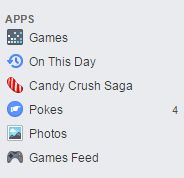
(i). Click on games option present on the left side of the homepage.
How to stop/block getting game request on facebook
 
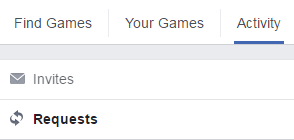
(ii). Click on activity option present on the top menu.

How to stop/block getting game request on facebook

(iii). Click on invites option on the present on the page.
How to stop/block getting game request on facebook

(iv). Now you will be able to see all the pending request from the
friends. Now click on ignore all option appear on the game request.

How to stop/block getting game request on facebook


(v). Click to block app or game request and confirm it.


How to upload video on you tube

How to upload video on you tube
In today world, if user had created a video to make it famous, user had to upload it on the YouTube. To upload a video on YouTube you need to have a google account.
Step1. Log in to your Google account on your browser.

Step 2. Visit YouTube official website.

HOW TO UPLOAD VIDEO ON YOUTUBE

Step 3. Click on upload option which is present on top right corner of the page.

How to upload video on you tube


Step 4. Now either a pop up menu will appear where you to create a you tube channel. Click on create channel or Just visit https://www.youtube.com/upload and upload your video there.

HOW TO UPLOAD VIDEO ON YOUTUBE


How to upload video on you tube


 Step 5. Now you have to select your file or drag it in to browser. Also user had to select its privacy policy.
HOW TO UPLOAD VIDEO ON YOUTUBE

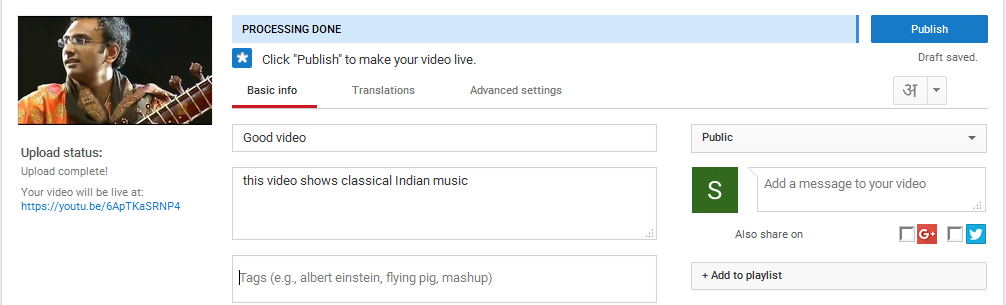
 Step 6. Now add a title and description to your video and click on publish option.

How to upload video on you tube


By following these steps video will be uploaded on you tube.

Thursday, 17 November 2016

How to download youtube video

How to download video from youtube
 Youtube  is a video watching website owned by Google. It is designed to allow user to watch,upload, view, rate, share, add to favorites, report and comment on videos. But many users want to download video so that they can watch video without being connected to the internet on their devices. So, now you can go through following steps to download youtube video depending on your requirement.

Step1: Visit Youtube official website.

Firstly, open any browser and You will need to visit Youtube website either by clicking this link or type https://www.youtube.com/ in browser bar. 

How to download video from youtube

Step2: Find Video you want to download
You can do this by entering video keyword(video name,author name etc) you want to search in youtube search bar and hit Enter.


download youtube video


Step3: Get the video URL
This can be done in two ways:
(a). From the list of recommended video as a result of your query, right click on video and click on copy link address as following.


(b). First click on video and it will take you to detail page. Now right click on the video you want to download and hit copy video url.

download youtube videos

Step 4: visit savefrom.net and enter copied url in search bar
Now visit savefrom.net by clicking this link and paste (ctrl+v) url of the video. Now hit enter key or click on Arrow on right of it. 

download youtube videos

Step 5: Select video type and hit download
Finally just select type of video/audio you want to download from drop down menu and click download. 

download youtube video


As soon as you hit Download button, your video/audio will start downloading in couple of minutes.

Tuesday, 15 November 2016

How to Enable Two step verification in WhatsApp

Two step verification in WhatsApp
Whatsapp is the social media app which is used by the most of the smartphone users in their day to day life. So it is very important for company to add security features for the user. The latest security features presented by the Facebook is the two step verification. Two-step verification is an optional feature that adds more security to your account. When you have two-step verification in your Whatsapp, any attempt to verify your phone number on Whats App must be accompanied by the six-digit passcode that you created using this feature.

Step1: Open Whatsapp in your smartphone.


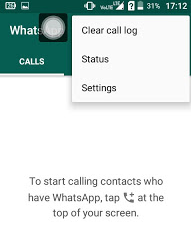
Step2: Click on three dot icon present on the top of screen.


 Step3: Click on Settings option that will pop up on the screen.


 Step4: Click on account option present on the screen.

Step5: Click on two steps verification.


Step6: Click on ENABLE option present on the screen.


Steps7: Now enter your six digit password and remember it, it will help you to secure your account.


After that user can optionally add their email addressThis email address will allow Whats App to send you a link via email to disable two-step verification in case you ever forget your six-digit passcode, and also to help safeguard your account. 

Friday, 4 November 2016

Storage on google drive

Google allow user to save 15 GB of data free. User can obtain more storage through monthly subscription. To get more storage on google drive check storage plane here. Google drive plans for users are as follow:

- 15GB data google drive is free of cost.
- 100GB it charge $ 1.99 per month.
- 1TB it charges $ 9.99 per month.
- 10TB it charges $ 99.99 per month.
- 20TB it charges $ 199.99 per month.
- 30TB it charges $ 299.99 per month.

How to buy a google drive plan:

Step 1.Visit http://www.google.com/settings/storage. 
Step 2. Choose any plan according to usage.
Step 3. Click choose.
Step 4. Complete the payment process.
Step 5. Click Buy option.
It may take 24 hours for you to complete storage become available.

How to share a file tyhrough google drive

Google drive is a online service that allow us to save files, photos and many other things online through cloud service. This help us to save space on hard disk and use the stuff efficiently.

Step 1. Log in to Google drive with your browser.It allow user to save file in the drive and view it using cloud.

 Step 2. Click on any file in the drive that you want to share and choose the share option present on the screen. Now enter the name or email of the person with whom you want to share the file.


Now the file is shared with the person with whom you want to share it.

How to use google drive

Step 1. Log in to Google drive with your browser.It allow user to save file in the drive and view it using cloud


If you don't have a account just create one by free just click here.

Step 2. If you want to save file into your drive click on new option present on left side of the screen. After that you can choose whether you want to save file or folder.


You can view your file by clicking on my drive option.

Display your file 
User can display file in grid mode or list mode. The list mode will show you the name of the owner and when it was last modified. The grid mode will show you the first page of the file as a preview.
You can change the mode by clicking on the button next to gear icon present on right side of the page


 Search for the file
 You can search your google drive documents using the search bar at the top of the page. You can search it through titles content,titles and owners. If a file is there it will appear under the search bar

How to use google drive on android smartphone 
Step 1. Visit google play store in your smartphone
Step 2. Search google drive on the search bar on the top of the page.

Step 3. Click on install button present on the screen, if you have sufficient memory app will get install.


Friday, 1 April 2016

How to Create a Facebook Page for a Business

In order to create a branding for your product, you needs to have a Facebook business page. Facebook business page can help your reach your users. Following are the steps for creating business page for Facebook.


Step 1. Visit www.facebook.com with your browser


Step 2. Click on create page option which is present on the bottom of the sign in page of the Facebook.


If your are logged in your account from home page go to create page option on the left side of the window


Step 3. A window will appear, choose which type of business page you want to start


Step 4. Click on business option, a window will appear


Step 5. Fill up the form and then click on get started
Step 6. Fill up the form what your page is about and give a description


Step 7. Choose the profile picture of your choice


Click on next option

 Step 8. Add it to favorites or skip it


Step 9. Last page is a preferred page option you will choose or skip it
Then a page will be created


How to Create a Facebook Page for a Business

In order to create a branding for your product, you needs to have a Facebook business page. Facebook business page can help your reach your users. Following are the steps for creating business page for Facebook.


Step 1. Visit www.facebook.com with your browser


Step 2. Click on create page option which is present on the bottom of the sign in page of the Facebook.


If your are logged in your account from home page go to create page option on the left side of the window


Step 3. A window will appear, choose which type of business page you want to start


Step 4. Click on business option, a window will appear


Step 5. Fill up the form and then click on get started
Step 6. Fill up the form what your page is about and give a description


Step 7. Choose the profile picture of your choice


Click on next option

 Step 8. Add it to favorites or skip it


Step 9. Last page is a preferred page option you will choose or skip it
Then a page will be created